FAQ
Installation & setup
Which Python version should I use?
Moove supports Python 3.10 through 3.12. We recommend Python 3.11 as it has been tested most extensively.
Do I still need Tkinter?
No. Moove now uses PyQt6 for its GUI. The previous dependency on
Tkinter (and the related packages ttkbootstrap / ttkwidgets) has
been removed. If you see old instructions mentioning python3-tk or
import tkinter, you can safely ignore them.
I get “No module named sounddevice” or a PortAudio error
sounddevice requires the PortAudio C library at runtime.
Windows: PortAudio is bundled with the pip package – a simple
pip install sounddeviceshould be enough.macOS: Install PortAudio via Homebrew first:
brew install portaudioLinux: Install the development package:
sudo apt install portaudio19-dev
After installing the system library, reinstall sounddevice:
pip install --force-reinstall sounddevice.
How do I enable ASIO on Windows?
Set the environment variable SD_ENABLE_ASIO=1 before starting Moove.
In PowerShell:
$env:SD_ENABLE_ASIO = "1"
moovegui
See Enabling ASIO support (Windows) in the Installation chapter for more details, including the legacy manual DLL-replacement method.
PyTorch fails with WinError 1114 / WinError 126 on Windows
If you see OSError: [WinError 1114] A dynamic link library (DLL)
initialization routine failed (referencing c10.dll or
fbgemm.dll), you are likely missing the Intel OpenMP runtime.
Quickest fix – install the CPU-only PyTorch wheel (sufficient for most Moove use cases):
pip install torch --index-url https://download.pytorch.org/whl/cpu
If you need CUDA support, install the missing runtime and reboot:
pip install intel-openmp
A system reboot after installing is sometimes required. For more details, see pytorch/pytorch#131662.
NumPy 2.x – is it supported?
Moove no longer pins an upper bound on NumPy. In most cases NumPy 2.x works fine, but some edge cases (especially around integer-type behaviour changes in NumPy 2.0) may surface. If you encounter unexpected errors, try pinning NumPy < 2:
pip install "numpy<2"
Poetry errors during installation
Moove has migrated from Poetry to uv / hatchling. If you cloned
an older version of the repository that still uses poetry.lock, pull
the latest changes and use uv sync instead. For pip installations,
nothing changes – pip install moove continues to work as before.
Using MooveTaf
My recording starts but the threshold for recording is never triggered
If your MooveTaf starts normally after selecting an input and output device,
you should see the line “Threshold triggered” in the terminal once you make a sound.
If this line never appears, your threshold is probably not adjusted well to your setup.
You can change the threshold for recording in the config.ini file in your .moove folder.
Per default, the threshold is set pretty low as it was optimized for the setups in our lab.
If your threshold is never triggered, play around with it by setting it even lower to perfectly adjust it to your setup.
You know it’s perfectly set when your sound source triggers it and a file is saved only after the sound has ended,
but it does not get triggered from minimal noise sources.
In case you are never able to record a sound, make sure that your setup, and especially your microphone connection, works properly or try using a different input device.
Note
Remember that dB is a logarithmic and relative scale, so changing the threshold does not work as linear as one might think.
My recording starts but my bouts are not saved
If your MooveTaf starts normally and you see the line “Threshold triggered”,
once your sound ends the line “Saving Bout” should appear in the terminal.
In case the line “Threshold triggered” never disappears, it is very likely
that your threshold is too sensitive (too low for your setup).
You can adjust the value in the config.ini file in your .moove folder.
Per default, the threshold is set pretty low as it was optimized for the setups in our lab.
If your recording never ends (threshold is triggered constantly) you need to set the value higher (closer to 0 or above).
You know it’s perfectly set when your sound source triggers it and a file is saved only after the sound has ended,
but it does not get triggered from minimal noise sources. When a bout is saved is also defined
by the parameters t_before, t_after and min_bout_duration set in the config file.
These define the amount of silence in seconds, that has to be recorded before and after the bout, respectively,
as well as the minimum duration the sound has to last in order to be saved. If these criteria are not met, the bout is not saved.
From our experience, when using pre-recorded songs to test the setup, noise can be part of the playback and therefore the saving criteria described about might not be met. In this case, make sure to have a few seconds of complete silence after the playback and see if your bout gets saved.
Note
Remember that dB is a logarithmic and relative scale, so changing the threshold does not work as linear as one might think.
Where are my recorded files?
If your files have been recorded and saved according to your terminal output, you can find them in your .moove folder.
The .moove folder is created in your home directory on first start.
Folders beginning with . are hidden by default on Linux and macOS:
macOS: Press
Cmd + Shift + .in FinderLinux: Press
Ctrl + Hin your file manager
The folder location can be changed – see MooveTAF for details. If you do so, the files fill be saved in that directory instead of your home directory.
Attention
Do not delete the .moove folder that was created in your home directory initially, as the new saving directory
has to be set here in the initial config file. Any changes to the config have to be made within the original directory.
My recording seems to stop in the midde of a syllable/ bout
If you ever see a syllable or bout being cut off in the middle, it is very likely that your threshold is not set correctly. Whether a file is terminated and saved depends on threshold crossing of the sound source rather than a syllable still being detected (onsets can be detected even when the threshold is not triggered).
You can adjust the value in the config.ini file in your .moove folder.
We really recommend taking some time to adjust the threshold correctly to your setup,
as it can strongly affect the quality of your recordings.
Why are there big red “stripes” in the middle of my recordings?
Moove is a pretty computation-heavy program. While you record with MooveTaf, we strongly recommend not using the computer for anything else. If you want to do so, make sure that your computer meets some requirements, i.e. having at least 32GB RAM and/or a decent CPU and/or a decent GPU. With this, we were able to do for example electrophysiological recordings while recording song, just keep in mind that the performance strongly depends on your setup.
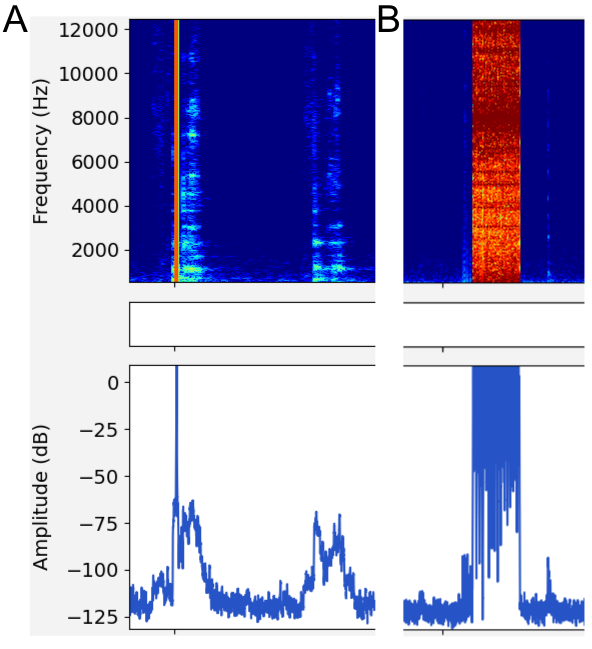
Figure 38 Figure: Example of audio artifacts.
When doing things in parallel that are not as computation-heavy and don’t require fast processing, make sure that you set the processing priority for MooveTaf as high as possible (as described in MooveTaf). We do recommend this setting for every recording, especially when using online classification and targeting as it can strongly improve the performance of the program.
Note
Try to avoid opening the MooveGUI while recording, as it can affect the performance of MooveTaf. If you want to check your recorded files while MooveTaf is running, make sure that your priority is set correctly as described above. Also, opening MooveGUI while recording can cause writing mistakes in your batch.txt file, as both programs are accessing it at the same time. These can be fixed as described in MooveGUI - Main Window.
Using MooveGUI
Where is my .moove folder?
The .moove folder is created in your home directory on first start.
Folders beginning with . are hidden by default on Linux and macOS:
macOS: Press
Cmd + Shift + .in FinderLinux: Press
Ctrl + Hin your file manager
The folder location can be changed – see MooveTAF for details.
Why does my GUI not open anymore?
In case you encounter an error stating something like “file cannot be found” while trying to open the GUI,
it is very likely that you changed something in your folder structure and/ or deleted a file/ folder that
you’ve been working on before. In this case, go to your .moove folder and delete the app_state.json
file. This will reset your GUI to default values, meaning that your slider settings, as well as the index
of the file you’ve worked on last will be gone, so it should only be done if unavoidable.
Note
All changes to a file are saved immediately in the GUI, so you will not loose any progress in segmentation, labelling etc. when doing this!
Why are my trained models saved as .zip?
When copying model files from Windows to Linux they may appear as
.zip archives. Simply extract them; the resulting .pth files
can be used directly in the config.
My spectrogram looks wrong or is empty
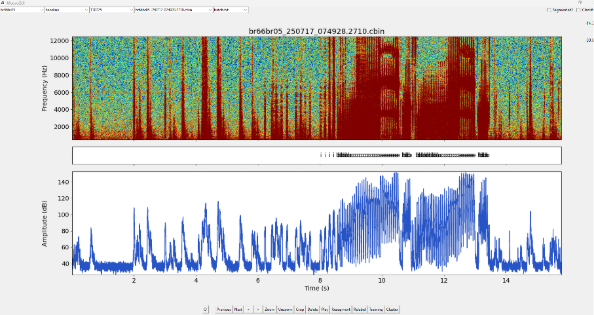
If the spectrogram is not visible or the song is hard to recognise, the
dB slider range is likely incompatible with your data. Adjust the vmin/vmax
sliders on the right side of the GUI, or set initial values in the
config file (see Setting the config). For .cbin files, slider
values between +40 and +100 often work well.
If your GUI plots appear to be completely empty, it is very likely that your folder path is incorrect. Make sure that you can set the bird, experiment and day folder and batch file correctly in the upper task bar. If not, check if your folders are structured according to as it is described in MooveTaf - Baseline recordings.
What if my segmentation looks ugly?
Case: Repeats
Offline segmentation
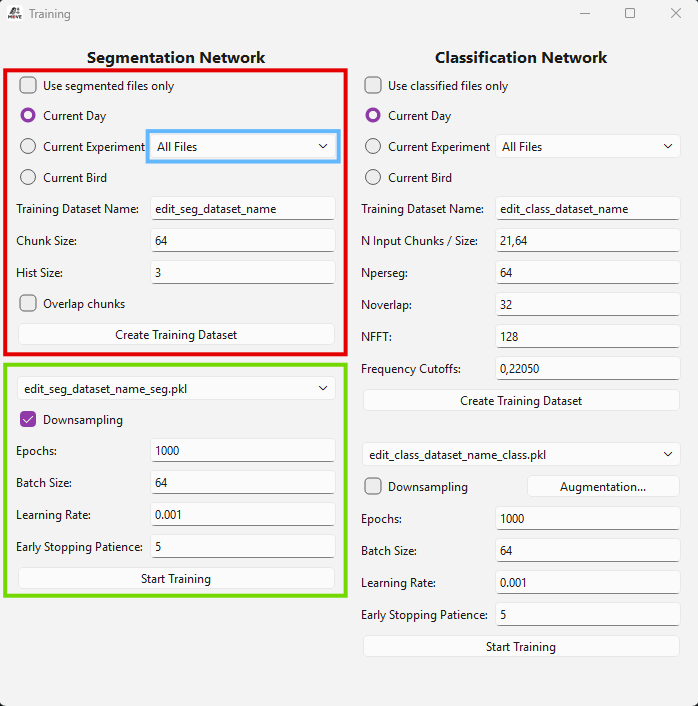
Figure 39 Figure: Training window settings.
For repeat segmentation, first hand-segment the repeats correctly, then create a dataset and train a network using the Training window (see Train the segmentation network) on Segmented files only. Ensure that downsampling is not activated to capture every single repeat syllable.
Once the network is trained, adjust the onset/offset detection parameters when resegmenting your files. The min syllable length and min silent duration parameters can improve accuracy. Always make sure to not tick “Overwrite already segmented files” to preserve your hand-corrected data.
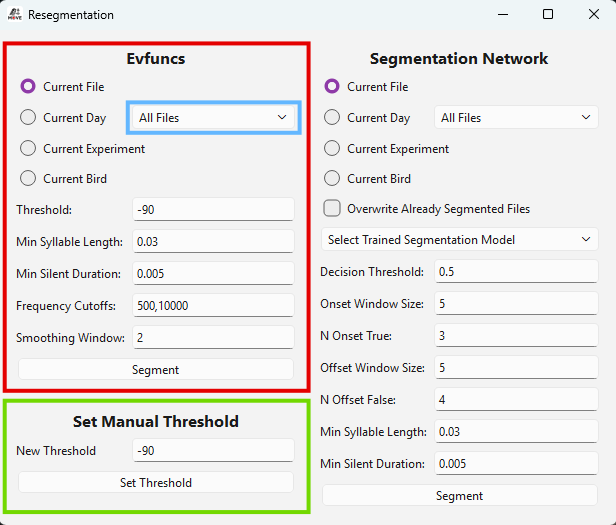
Figure 40 Figure: Resegmentation window.
Example parameters for repeat segmentation:
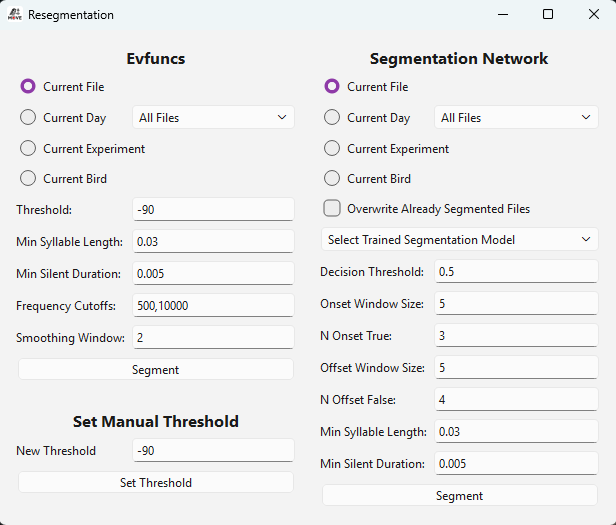
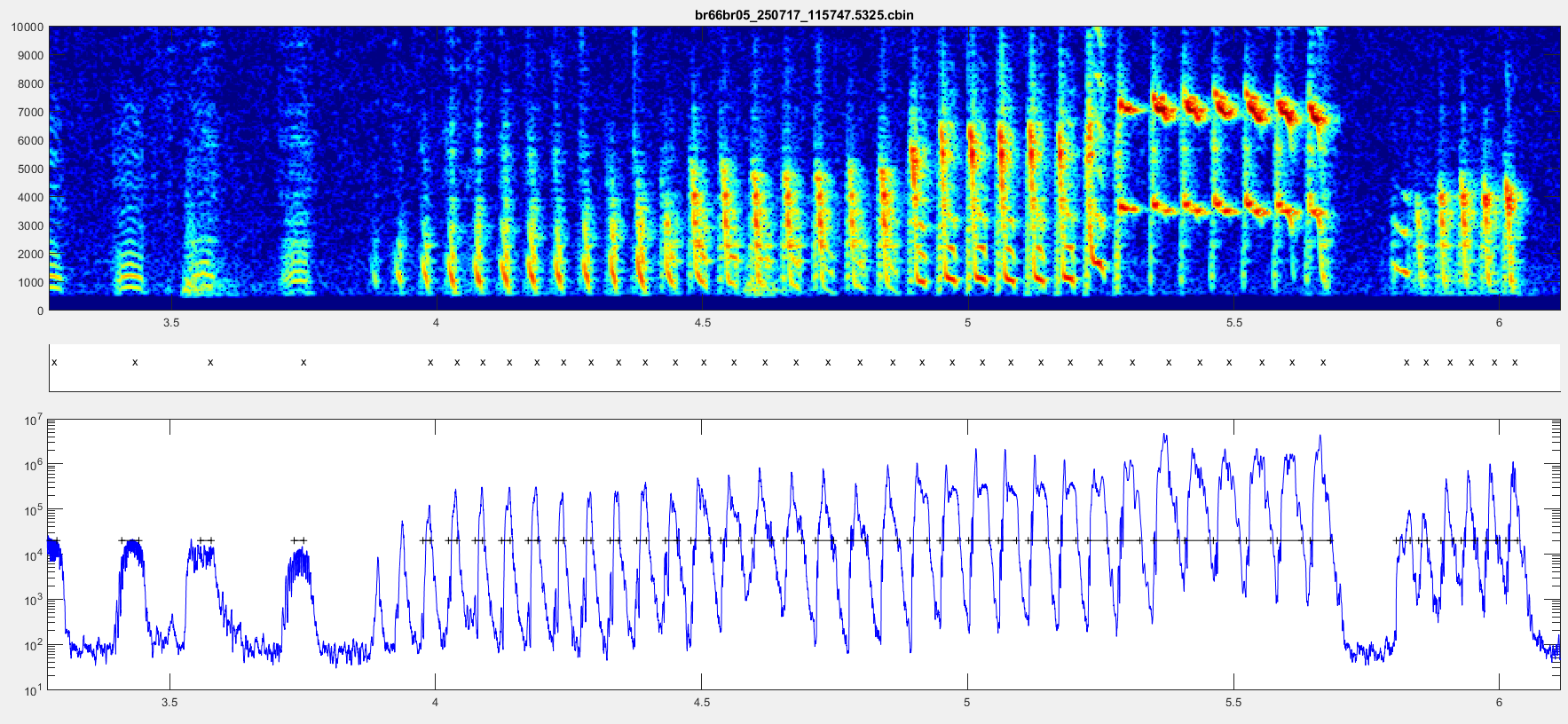
Figure 41 Figure: Correctly segmented repeats after parameter adjustment.
Online classification
Online classification of syllables is performed within 30 ms after syllable onset by default. You can reduce this window for very short syllables by changing the audio chunk size and number of input chunks in the Training window. With default parameters (chunk size 64 at 44.1 kHz, 21 input chunks) the classification latency is 1.45 ms × 21 ≈ 30 ms. Adjusting these parameters can decrease latency but may reduce accuracy.